

Do you want to create your own custom widgets in WordPress? Widgets allow you to drag and drop elements into any sidebar or widget ready area of your website. In this article, we will show you how to easily create a custom WordPress widget.

What is a WordPress Widget?
WordPress widgets contain pieces of code that you can add to your website’s sidebars or widget ready areas. Think of them as modules that you can use to add different elements by using a simple drag and drop interface.
By default, WordPress comes with a standard set of widgets that you can use with any WordPress theme. See our beginner’s guide on how to add and use widgets in WordPress.
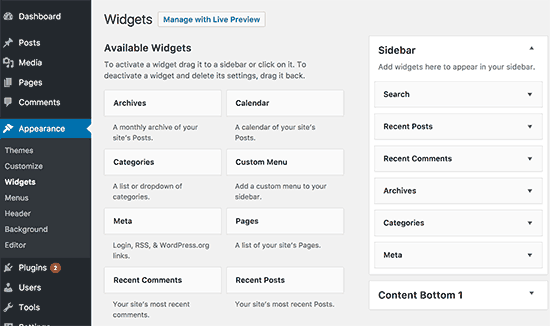
WordPress also allows developers to create their own custom widgets. Many WordPress themes and plugins come with their own custom widgets that you can add to your sidebars.
For example, you can add a contact form, a custom login form, or a photo gallery to a sidebar without writing any code.
Having said that, let’s see how to easily create your own custom widgets in WordPress.
Video Tutorial
If you don’t like the video or need more instructions, then continue reading.
Creating a Custom Widget in WordPress
Before we get started, it would be best if you create a site-specific plugin where you will be pasting the widget code from this tutorial.
You can also paste the code in your theme’s functions.php file. However, it will only be available when that particular theme is active.
In this tutorial, we will create a simple widget that just greets visitors. Take a look at this code and then paste it in your site-specific plugin to see it in action.
|
1
2
3
4
5
6
7
8
9
10
11
12
13
14
15
16
17
18
19
20
21
22
23
24
25
26
27
28
29
30
31
32
33
34
35
36
37
38
39
40
41
42
43
44
45
46
47
48
49
50
51
52
53
54
55
56
57
58
59
60
61
62
|
// Register and load the widgetfunction wpb_load_widget() { register_widget( 'wpb_widget' );}add_action( 'widgets_init', 'wpb_load_widget' );// Creating the widget class wpb_widget extends WP_Widget {function __construct() {parent::__construct(// Base ID of your widget'wpb_widget', // Widget name will appear in UI__('WPBeginner Widget', 'wpb_widget_domain'), // Widget descriptionarray( 'description' => __( 'Sample widget based on WPBeginner Tutorial', 'wpb_widget_domain' ), ) );}// Creating widget front-endpublic function widget( $args, $instance ) {$title = apply_filters( 'widget_title', $instance['title'] );// before and after widget arguments are defined by themesecho $args['before_widget'];if ( ! empty( $title ) )echo $args['before_title'] . $title . $args['after_title'];// This is where you run the code and display the outputecho __( 'Hello, World!', 'wpb_widget_domain' );echo $args['after_widget'];} // Widget Backend public function form( $instance ) {if ( isset( $instance[ 'title' ] ) ) {$title = $instance[ 'title' ];}else {$title = __( 'New title', 'wpb_widget_domain' );}// Widget admin form?><p><label for="<?php echo $this->get_field_id( 'title' ); ?>"><?php _e( 'Title:' ); ?></label> <input class="widefat" id="<?php echo $this->get_field_id( 'title' ); ?>" name="<?php echo $this->get_field_name( 'title' ); ?>" type="text" value="<?php echo esc_attr( $title ); ?>" /></p><?php } // Updating widget replacing old instances with newpublic function update( $new_instance, $old_instance ) {$instance = array();$instance['title'] = ( ! empty( $new_instance['title'] ) ) ? strip_tags( $new_instance['title'] ) : '';return $instance;}} // Class wpb_widget ends here |
After adding the code you need to head over to Appearance » Widgets page. You will notice the new WPBeginner Widget in the list of available widgets. You need to drag and drop this widget to a sidebar.
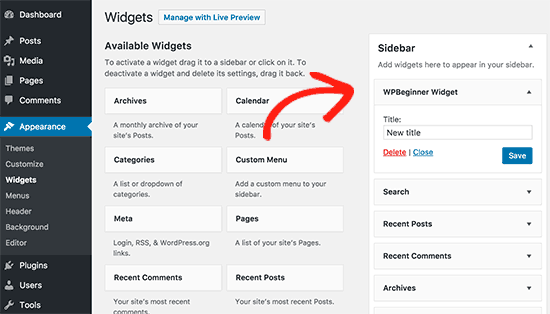
Now you can visit your website to see it in action.

Now let’s study the code again.
First we registered the ‘wpb_widget’ and loaded our custom widget. After that we defined what that widget does, and how to display the widget back-end.
Lastly, we defined how to handle changes made to the widget.
Now there are a few things that you might want to ask. For example, what’s the purpose wpb_text_domain?
WordPress uses gettext to handle translation and localization. This wpb_text_domain and __e tells gettext to make a string available for translation. See how you can find translation ready WordPress themes.
If you are creating a custom widget for your theme, then you can replace wpb_text_domain with your theme’s text domain.
We hope this article helped you learn how to easily create a custom WordPress widget. You may also want to see our list of the most useful WordPress widgets for your site.